Bluetooth Not Connecting to Your Car? How to Fix It (iPhone and Android)
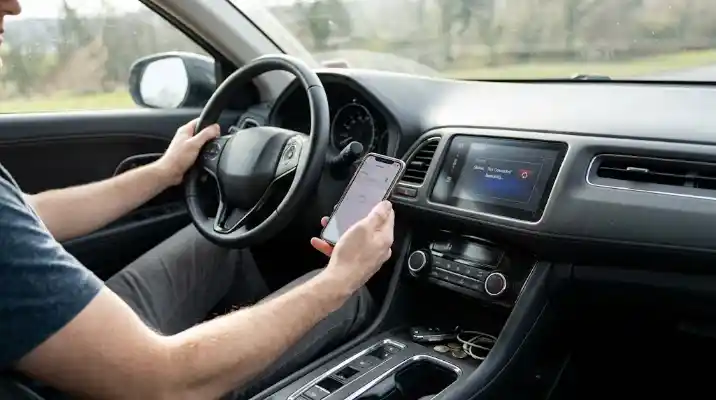
Bluetooth not connecting to car audio is one of the most common infotainment complaints. If your phone’s Bluetooth won’t connect to your car, the fix is usually quick: turn Bluetooth off and on, restart both the phone and the car’s infotainment system, then delete the pairing on both sides and pair again. Most failures come from a stale or corrupted pairing, a car whose memory is full of old phones, or a recent phone or car software update. Hardware faults are much rarer.
Work through the steps below in order, starting with the quickest fixes. There are separate sections for iPhone and Android, for calls working but music not, for connections that keep dropping, and for adding Bluetooth to an older car.
Key Takeaways
- Fastest fix: restart the phone and turn the car fully off for a few minutes, then try again.
- Most reliable fix: “forget” the car on your phone, delete the phone from the car, then pair again from scratch.
- Car memory full: many cars store only a limited number of phones; delete old ones.
- Connected but no music: check that media audio is enabled for the car in your phone’s Bluetooth settings.
- Older car without Bluetooth: an adapter costs about $15–$60; a new head unit costs a few hundred dollars installed.
Safety note: pair and troubleshoot only while parked. Many cars block pairing while moving for this reason, and adjusting phone settings while driving is dangerous and illegal in many states.
Quick Fixes to Try First
- Check the basics: Bluetooth is on in the phone, the car is on or in accessory mode, and the car’s audio source is set to Bluetooth.
- Turn off Airplane Mode and Low Power or Battery Saver mode on the phone, which can limit Bluetooth.
- Toggle Bluetooth off and back on on the phone.
- Restart the phone.
- Restart the car’s system: turn the car off, open and close the driver’s door so the electronics fully shut down, wait two to five minutes, then start it again.
- Disconnect other devices such as earbuds, smartwatches or a second phone that may be grabbing the connection.
Delete and Re-Pair: The Fix That Works Most Often
If the quick fixes do not work, clear the old pairing on both sides so the phone and car start fresh.
On an iPhone
- Go to Settings > Bluetooth.
- Tap the info (i) icon next to your car’s name, then tap Forget This Device.
- In the car, open the Bluetooth or phone settings and delete your iPhone from the list of paired devices.
- Put the car in pairing mode (often under Settings > Bluetooth > Add device or Pair phone).
- On the iPhone, select the car when it appears, confirm the matching code on both screens, and allow contacts and favorites sync if asked.
On an Android Phone
- Go to Settings > Connected devices (or Settings > Bluetooth on Samsung).
- Tap the gear icon next to your car and choose Forget or Unpair.
- Delete the phone from the car’s paired device list.
- Start pairing from the car, then select the car on the phone and confirm the code.
- Allow access to contacts and call history if you want hands-free calling to show names.
Menu names vary by phone and car brand. If you cannot find the car’s Bluetooth settings, check the owner’s manual or the automaker’s website, which usually has step-by-step pairing guides for your model.
Common Reasons Bluetooth Will Not Connect
| Cause | What you notice | Fix |
|---|---|---|
| Stale or corrupted pairing | Worked before, now fails or connects briefly | Forget and re-pair on both sides |
| Car memory full | New phone will not pair, old ones still listed | Delete old phones from the car |
| Another device connected | Car connects to a different phone or headphones | Disconnect or remove the other device |
| Phone software update | Problem started right after an update | Re-pair, then check for a follow-up update |
| Outdated car software | Frequent drops, newer phones unsupported | Install infotainment updates over the air, by USB or at the dealer |
| Power-saving settings | Connection drops after a few minutes | Disable battery optimization for Bluetooth, phone and music apps |
| Interference | Crackling or drops, often with a phone charger or dashcam plugged in | Unplug accessories and test again |
| Faulty head unit, antenna or module | No Bluetooth for any phone, even after a reset | Dealer or car audio shop diagnosis |
Bluetooth Connected but No Sound or Music
If calls work but music does not, or the phone shows it is connected but nothing plays, the audio profile is usually the problem:
- Enable media audio: on Android, open the car’s Bluetooth settings on the phone and make sure both “Phone calls” and “Media audio” are switched on. On iPhone, check that the car is selected as the audio output in Control Center.
- Switch the car’s source to Bluetooth Audio or BT Audio, not just Phone.
- Check the volume on both the phone and the car; they are separate.
- Open the music app first and press play; some cars do not start playback automatically.
- Re-pair if the media profile never appears.
Bluetooth Keeps Disconnecting
- Turn off battery optimization for Bluetooth and your music, maps and phone apps on Android, and keep Low Power Mode off on iPhone while testing.
- Remove other devices from the car’s list so it does not keep switching between phones.
- Keep the phone out of metal holders or deep console bins that weaken the signal.
- Unplug cheap USB chargers, FM transmitters or dashcams to rule out interference.
- Update both the phone and the car software.
- If only one phone drops and others work fine, reset that phone’s network settings as a last step.
Bluetooth Will Not Connect Automatically
If you have to reconnect by hand every time, check that the car is set as a trusted or auto-connect device. On some cars there is a “Connect automatically” or “Preferred device” setting in the paired device list. Make sure your phone’s Bluetooth stays on, and that no other paired phone is set as the priority device.
Resetting Network Settings (Last Resort)
If a single phone still will not connect to any Bluetooth device properly, resetting its network settings can clear corrupted data. It also deletes saved Wi-Fi networks, VPN settings and all Bluetooth pairings, so you will need to reconnect everything afterward.
- iPhone: Settings > General > Transfer or Reset iPhone > Reset > Reset Network Settings.
- Android: Settings > System > Reset options > Reset Wi-Fi, mobile and Bluetooth (wording varies by brand).
Many cars also have a factory reset or “reset infotainment” option in their settings menu, which clears all paired phones and saved preferences. Use it when the car refuses every phone.
What About Apple CarPlay and Android Auto?
CarPlay and Android Auto often use a USB cable, even though some cars also use Bluetooth for calls or for wireless versions. If they fail to start, try a different, good-quality USB cable plugged into the car’s data port (not a charge-only port), make sure CarPlay or Android Auto is enabled on the phone, and restart both devices. For wireless CarPlay or Android Auto, Wi-Fi and Bluetooth both need to be on.
When It Is a Hardware Problem
If no phone can connect even after deleting pairings, updating software and resetting the infotainment system, the fault may be in the head unit, the Bluetooth module or its antenna, or a wiring or fuse issue. Signs include the Bluetooth menu missing or grayed out, the system rebooting on its own, or a blank screen. Check the owner’s manual for the radio or infotainment fuse, and ask the dealer whether a software update or a technical service bulletin covers your problem, which can make the fix free or cheap.
| Repair | Typical cost |
|---|---|
| Infotainment software update at a dealer | Often free under warranty; $0–$150 otherwise |
| Diagnostic check | $100–$200 |
| Bluetooth module or antenna replacement | $150–$600 |
| Factory head unit replacement | $500–$2,000+ |
How to Add Bluetooth to an Older Car
| Option | Typical cost | Pros | Cons |
|---|---|---|---|
| FM transmitter | $15–$40 | Works with any car radio; plugs into the 12V socket | Static in cities; sound quality varies |
| Bluetooth AUX adapter | $20–$60 | Clear sound if the car has a 3.5 mm aux input | Needs an aux jack; may need charging |
| Bluetooth cassette adapter | $20–$40 | Works in older tape decks | Basic sound quality |
| Aftermarket head unit with Bluetooth or CarPlay | $150–$800 plus $100–$300 installation | Best sound, hands-free calls and often CarPlay or Android Auto | Highest cost; may need dash kit and wiring adapters |
For more troubleshooting help, see our car problems guides. If the infotainment screen keeps freezing or rebooting, a weak battery can be the cause; here is how to test your car battery. Infotainment bugs are sometimes fixed by recall software updates; check the NHTSA recall lookup.
Car Bluetooth FAQ
Usually because of a stale pairing, a full list of saved phones in the car, another device already connected, or a recent software update. Restart both, then forget the pairing on both sides and pair again.
Delete your phone from the car’s paired device list, or use the infotainment system’s reset or factory reset option in the settings menu. Then pair the phone again from scratch.
The media audio profile may be off, or the car’s source is not set to Bluetooth Audio. Turn on media audio for the car in your phone’s Bluetooth settings, select Bluetooth Audio in the car and check both volumes.
Common causes are phone battery-saving settings, another paired device stealing the connection, interference from chargers or dashcams, or outdated software. Disable battery optimization, remove extra devices and update software.
It depends on the car, but many systems store roughly 5 to 10 phones. When the list is full, new phones may not pair until you delete old ones.
Most cars block pairing while the vehicle is moving. Pair and troubleshoot only when you are safely parked.
Use an FM transmitter or Bluetooth AUX adapter for about $15 to $60, or install an aftermarket head unit with Bluetooth, which usually costs a few hundred dollars including installation.
Sometimes. Fully powering down the car resets the infotainment system, which can clear glitches. Try turning the car off for several minutes first, and use the system’s built-in reset before disconnecting the battery.